If you've spent any time using Claude, Cursor, or other AI assistants, you've probably run into the same workflow.
You ask the AI to write something. It gives you a draft. You copy the text into a humanizer. You wait for the result. Then you copy it back into your document, email, or workflow.
It works, but it's slow.
Today, we're launching the WriteHuman MCP Server, which lets AI assistants use WriteHuman directly inside the conversation. Once connected, your assistant can humanize AI-generated text or check whether a passage reads as AI-generated without ever leaving the chat.
No extra tabs. No copy-and-paste. No switching between tools.
Quick Overview
Available on Pro, Ultra, and API plans
Works with Claude, Cursor, Codex, and other MCP-compatible clients
Humanize text, run AI detection, and check usage from chat
One-time setup with your existing WriteHuman account
Visit the MCP page for setup instructions, pricing, and supported clients
What Is MCP?
MCP stands for Model Context Protocol.
Created by Anthropic, MCP is an open standard that allows AI assistants to connect to external tools and services. Think of it as a universal connector between AI models and the software they use.
Before MCP, every AI application needed custom integrations for every tool. If a company wanted to make its service available inside Claude, Cursor, and other AI clients, it often had to build separate integrations for each one.
MCP changes that.
A company can expose its capabilities through an MCP server, and any MCP-compatible AI client can use those capabilities. Once connected, the assistant can discover available tools, decide when to use them, and return the results directly in the conversation.
Over the past year, MCP has quickly become one of the most widely adopted standards in AI. Companies like GitHub, Stripe, Slack, Figma, Postgres, and many others now offer MCP servers that allow AI assistants to interact with their products.
Now, WriteHuman is part of that growing ecosystem.
What Can the WriteHuman MCP Server Do?
The WriteHuman MCP Server currently exposes three tools: humanize_text, detect_ai_text, and get_account.
Your assistant picks the right tool based on what you ask. You do not need to remember the tool names, but they are useful to understand what is happening under the hood.
Humanize AI Text
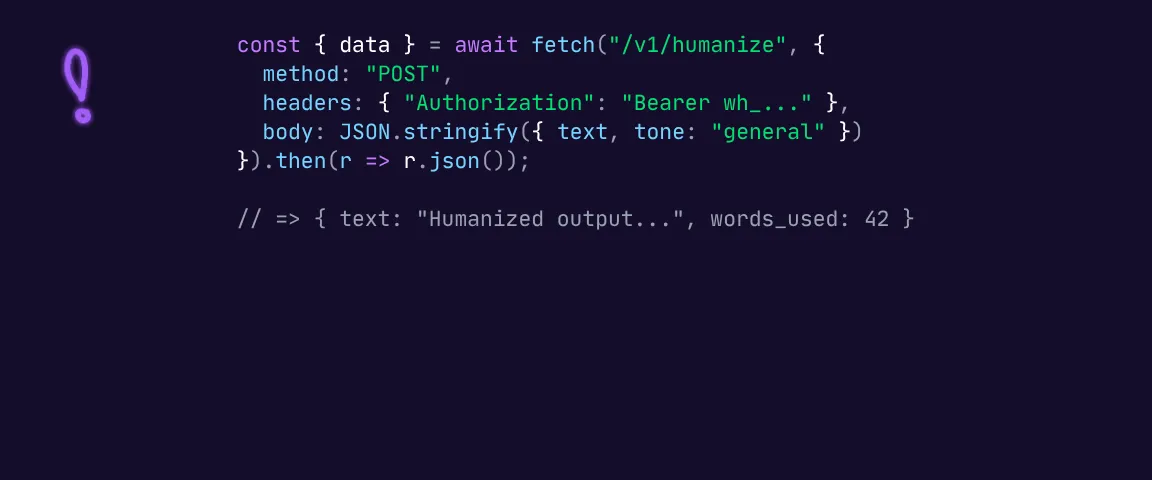
The humanize_text tool gives your assistant access to the same humanization engine that powers WriteHuman.
Pass in text and get back multiple humanized variations with per-variation quality scores. Pro users receive 3 variations, and Ultra users receive 5. Your assistant can pick the strongest version to show you, and you can always ask to see the others.
You can use it when you want to humanize, rewrite, polish, or make AI-generated text sound more natural.
For example:
Write a LinkedIn post about AI automation, then humanize it with WriteHuman.
Or:
Rewrite this paragraph using WriteHuman so it sounds more natural.
The tool supports tone guidance, including standard, professional, casual, academic, blog, creative, scientific, and technical. It also supports 40+ languages and can auto-detect the language by default.
Text must be between 5 and 15,000 words. Per-request humanization limits are up to 1,200 words on Pro and 3,000 words on Ultra.
Detect AI-Generated Text
The detect_ai_text tool gives your assistant access to WriteHuman's AI detection capabilities.
Pass in text and get back an AI-generated probability score from 0 to 1, along with a three-way classification: human, AI, or mixed. It uses the same classifier that powers the AI Detector on the WriteHuman site.
You can use it when you want to check, score, or detect AI patterns in a piece of writing.
For example:
Using WriteHuman, check whether this article reads as AI-generated.
Or:
Run AI detection on this final draft before I publish it.
The text must be at least 30 words and no more than 5,000 words.
Detection uses its own per-cycle allowance: 400 requests per month on Pro and 2,000 requests per month on Ultra. It does not fall back to your API word balance. If you run out, detection becomes available again at renewal.
Check Account Usage
The get_account tool lets your assistant check your current WriteHuman plan and usage.
It returns your plan tier, your MCP humanize and detect usage for the current cycle, the amount used, the amount remaining, the monthly cap for each, and any API word balance you have available as overflow.
You can use it when you want to check your plan, usage, or remaining requests.
For example:
Using WriteHuman, how many requests do I have left this cycle?
The tool is read-only, does not require any parameters, and does not count toward your usage.
Example Prompts
Once WriteHuman is connected, you can mention it directly in your prompt and your assistant will pick the right tool.
Polish a Draft Right After Writing It
Help me write a cold email pitching our agency to a SaaS founder. When you're done, use WriteHuman to humanize the final version so it doesn't read as AI.
Why this works: Your assistant writes the draft, then calls humanize_text. You get one polished version without needing a second prompt.
Humanize as You Go
I'm writing a blog post about remote team culture. Let's work section by section. After each section, use WriteHuman to humanize it and show me the cleaned-up version before we move on.
Why this works: Each section gets its own humanization pass while your assistant keeps the full post structure intact.
Check Your Usage
Using WriteHuman, how many requests do I have left this cycle?
Why this works: Your assistant calls get_account and explains your plan tier, usage, and remaining requests in plain language.
Combine With Translation
Translate this paragraph to Spanish, then use WriteHuman to humanize the Spanish output so it sounds natural.
Why this works: humanize_text supports 40+ languages, so your assistant can translate and humanize in the same workflow.
Rewrite Something You Pasted
Here's an article draft a client sent me. It's clearly AI-written. Use WriteHuman to rewrite the whole thing to sound human, keeping the same structure and key points.
Why this works: Paste in any AI-sounding text and get back a cleaner version without leaving the chat.
Tune the Tone
Using WriteHuman, humanize this product update post in a more casual, slightly playful tone.
Why this works: humanize_text accepts tone guidance, so your assistant can map your request to the right style.
Check Before Publishing
Using WriteHuman, run this through the detector before I post it. If the score looks too high, humanize it and check again.
Why this works: Your assistant calls detect_ai_text, reviews the AI probability, and can chain into humanize_text if needed.
Review a Batch of Text
Here are five customer support replies. Using WriteHuman, check each one for AI patterns and humanize the ones that need work.
Why this works: Your assistant can run detection across multiple items, summarize the results, and clean up the weaker drafts.
How to Connect
WriteHuman MCP works with any MCP-compatible AI client. You only need a Pro or Ultra plan, and the same MCP server URL works everywhere.
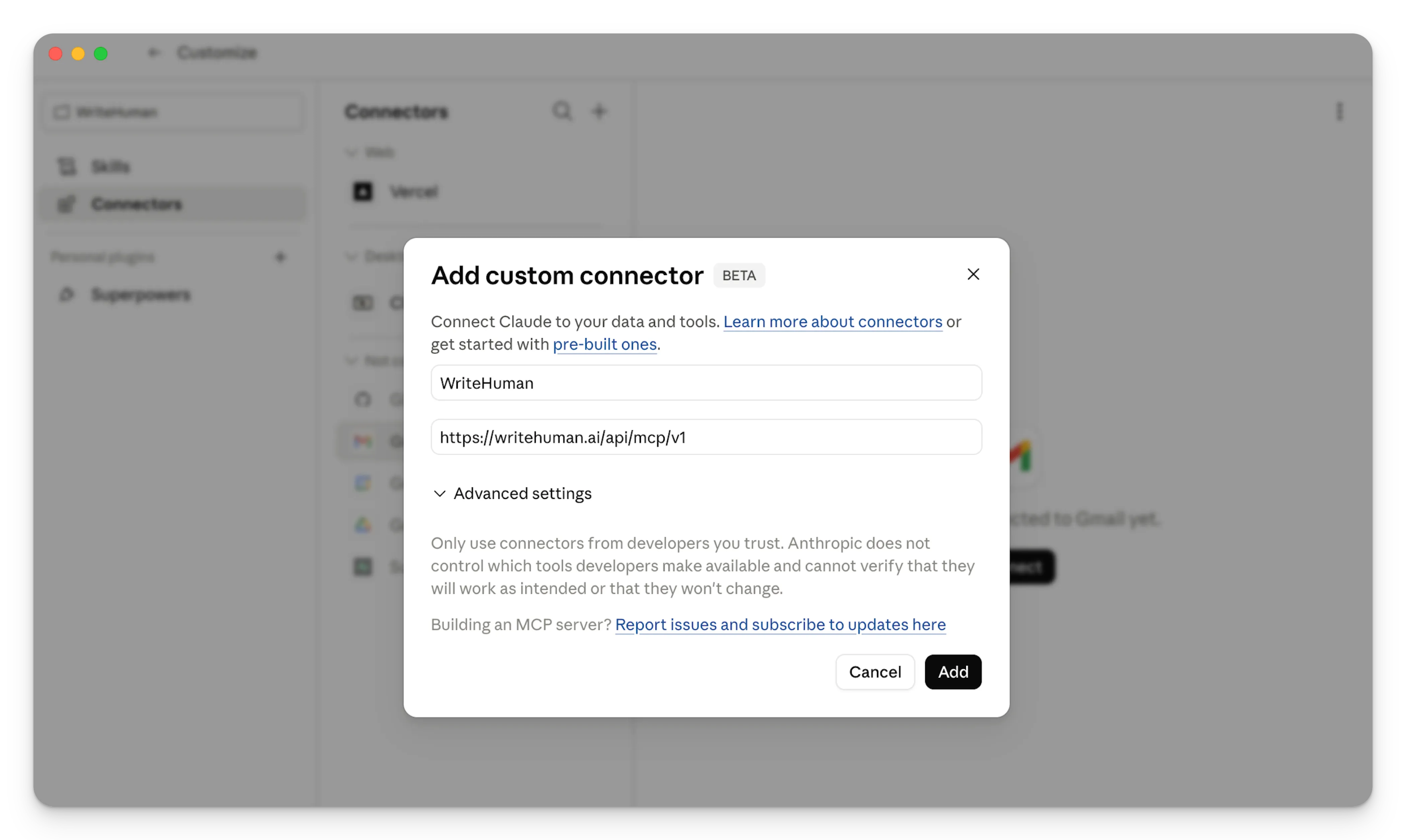
You do not need to create an API key or copy a token. The first time you connect WriteHuman from a new client, a browser tab will open for OAuth sign-in. Sign in with your normal WriteHuman account, approve access, and the connection will persist for that client and machine.
Then choose your AI client below for step-by-step setup instructions.
Claude & Claude Code — Connect WriteHuman using Claude's MCP connector flow.
Codex — Configure WriteHuman using Codex's MCP settings.
Cursor — Connect WriteHuman as a remote MCP server.
Other / Manual Setup — Generic instructions for any MCP-compatible client.
Setup only takes a few minutes and only needs to be completed once. After connecting your account, you can ask your assistant to humanize text, check for AI-generated content, or view your remaining WriteHuman usage directly from chat.
Why We Built This
WriteHuman has always focused on making AI-generated content sound more natural and authentic.
As AI assistants become a bigger part of how people work, jumping between separate tools becomes increasingly unnecessary. MCP lets users bring WriteHuman directly into the assistant workflows they already use.
The WriteHuman MCP Server makes humanization and AI detection available wherever your AI assistant works, so you can spend less time managing tools and more time creating.
Getting Started
Ready to try it?
Head over to the WriteHuman MCP page for setup instructions, pricing, supported clients, and plan limits.
Once connected, you can humanize text, run AI detection, and check your WriteHuman usage directly from your AI assistant.
If you run into any issues or have questions, our team is happy to help.