AI Humanizer MCP
for your Agents
Connect WriteHuman to Claude, Cursor, Codex, or any MCP-aware client just once. From then on, your assistant can humanize anything it writes or check whether a passage reads as AI, right inside the chat. Included in Pro, Ultra, and API plans.
# Add WriteHuman to Claude Code
claude mcp add writehuman \
  --transport http https://writehuman.ai/api/mcp/v1

# ✓ Sign in once via OAuth, then
# "humanize this draft with writehuman" just works.Watch the setup
Four minutes: connecting WriteHuman to Claude and Codex, then using it in a normal conversation.
How to connect
You'll need a Pro, Ultra, or API subscription. The connector URL is the same everywhere. Sign-in happens through your normal WriteHuman account, no API keys or copied tokens.
https://writehuman.ai/api/mcp/v1First connection from a new client opens a browser tab for a quick OAuth sign-in. Tokens persist; you only do this once per client, per machine.
Claude.ai & Claude Desktop
Same steps in your browser and in the desktop app — the screenshots below are from the app.
- 1.Open Claude — at claude.ai or in the desktop app. In the sidebar, click Customize. (On the web you can also open claude.ai/customize/connectors directly.)
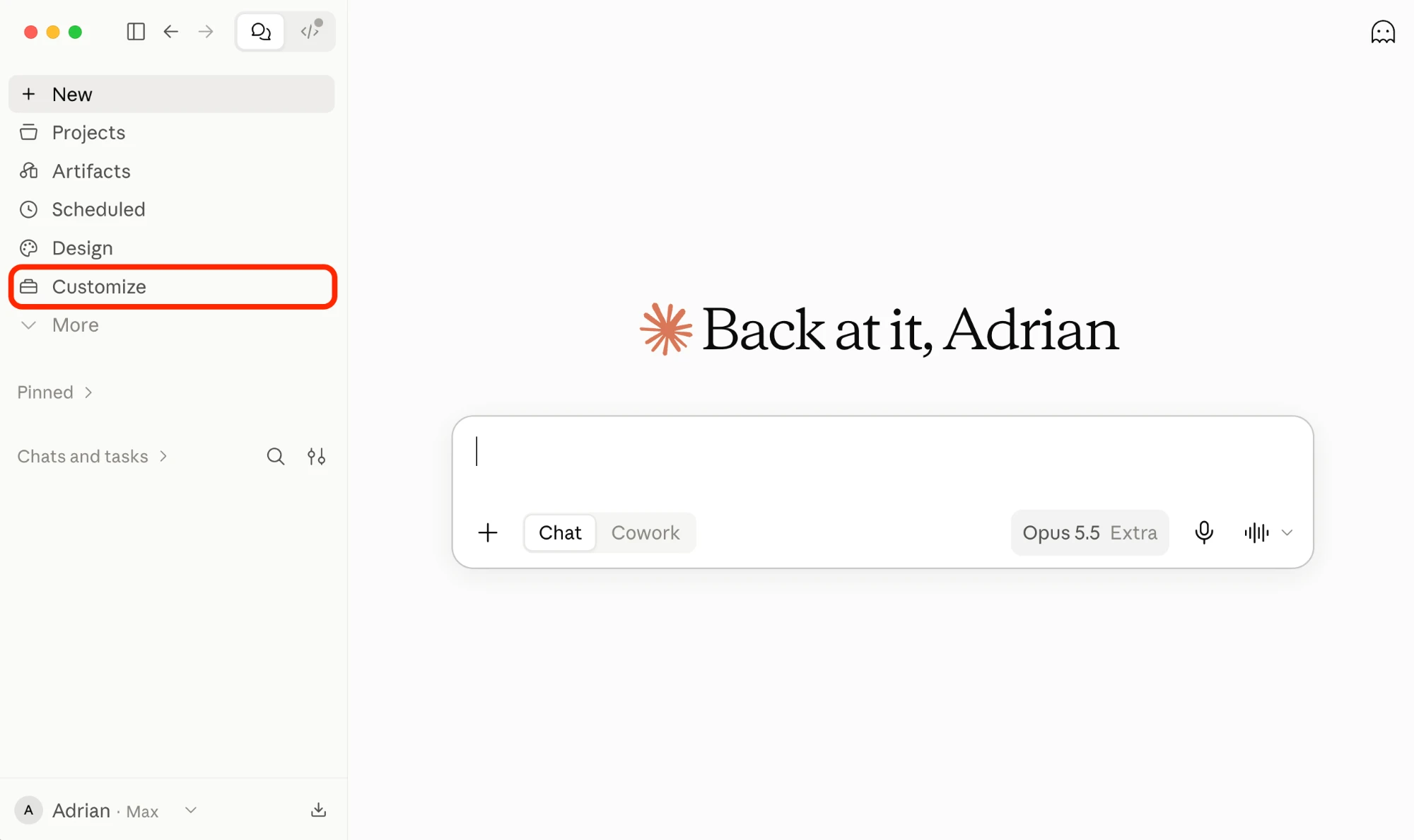
Click Customize in the sidebar. - 2.On the Connectors tab, click + Add, then Add custom connector.
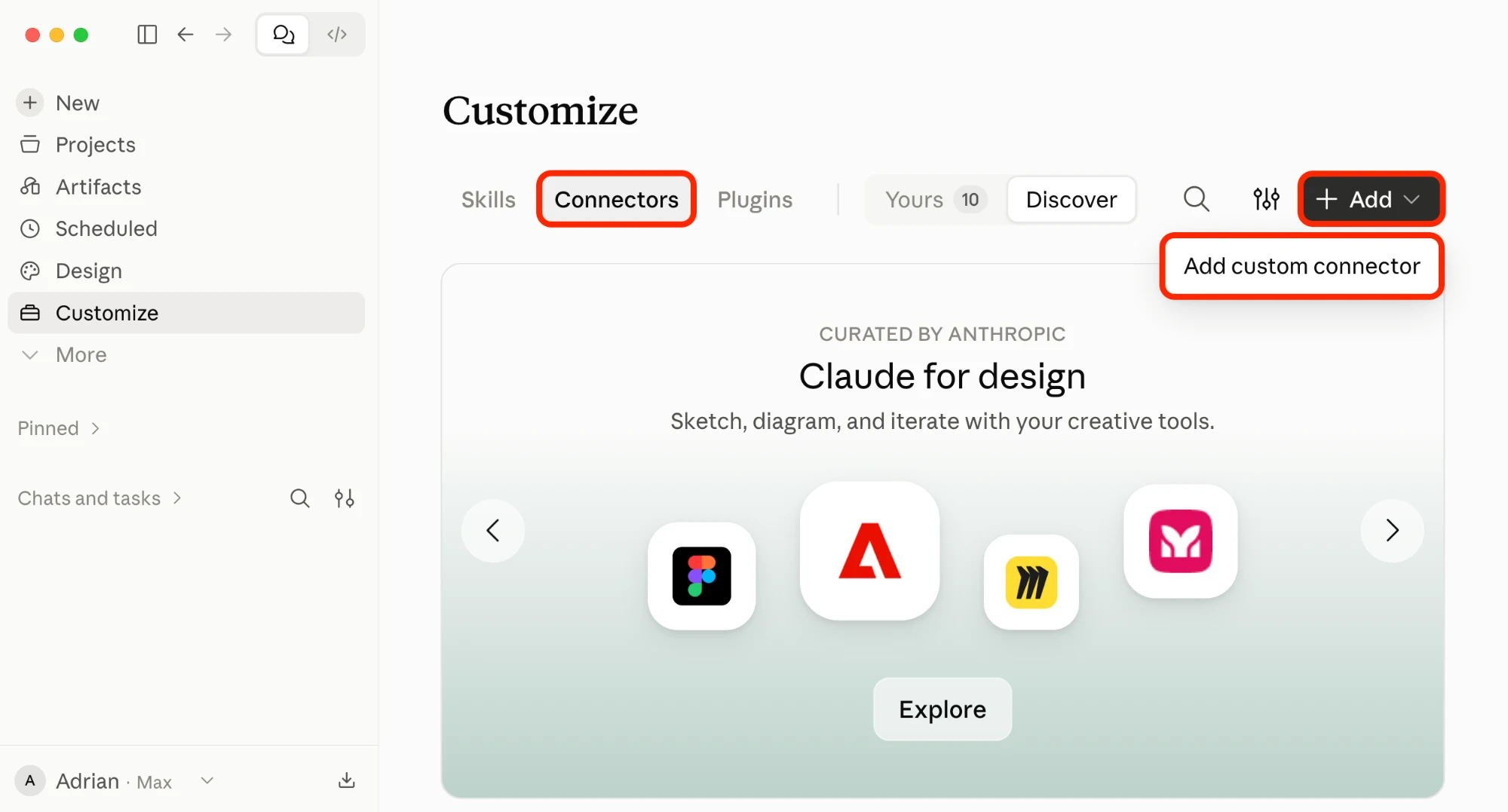
Connectors tab → + Add → Add custom connector. - 3.Give it a name like “WriteHuman”, paste the URL above into the server address field, then click Continue.
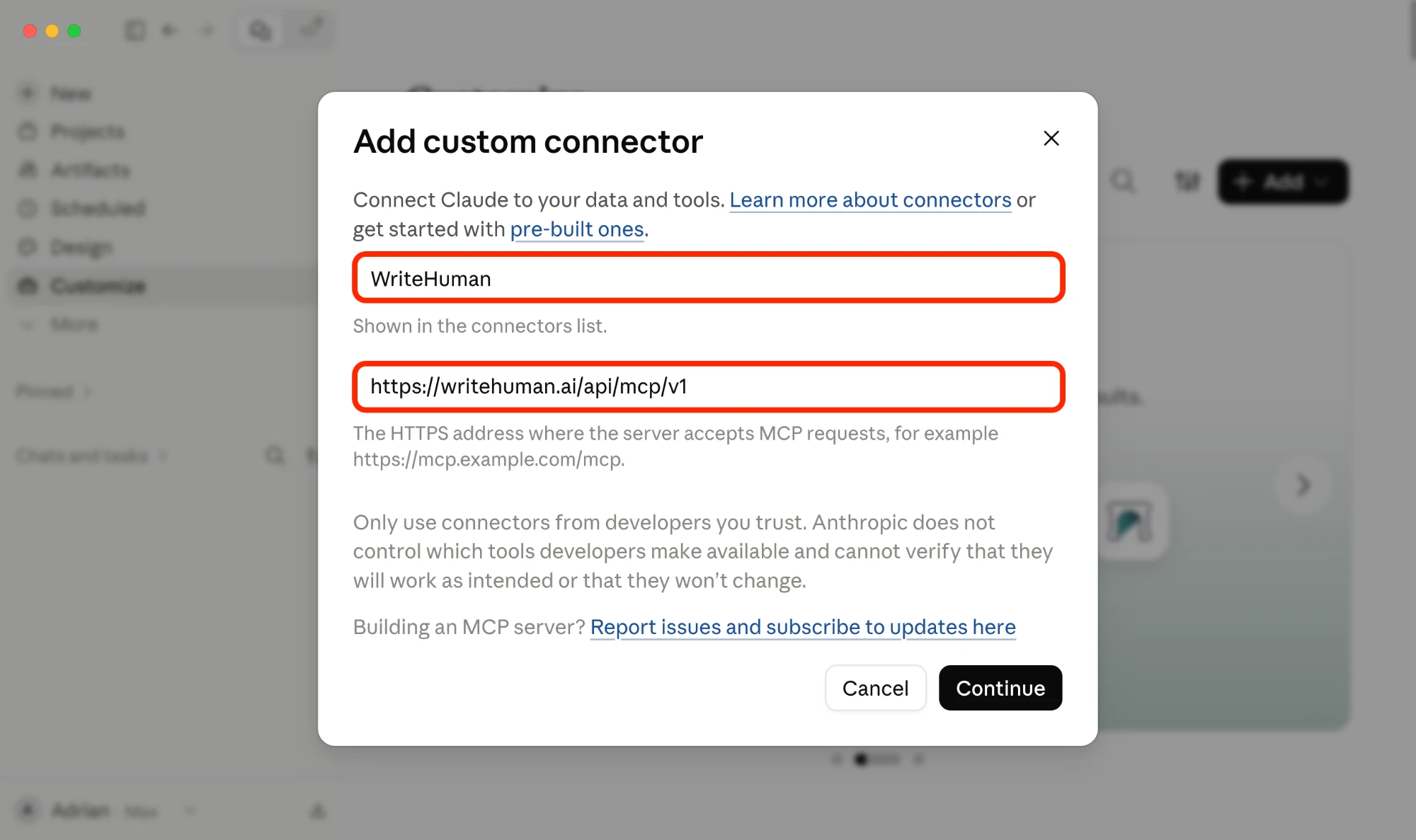
Name it WriteHuman, paste the MCP URL, then click Continue. - 4.Find the new WriteHuman connector in your list and click Connect to establish the connection.
- 5.A WriteHuman sign-in page opens — a popup on the web, or your default browser from the desktop app. Sign in with your normal account and click Allow on the consent screen. (If you're already signed in in that browser, you'll skip straight to consent.)
- 6.To use it in a chat, click the + button at the bottom-left of the chat box, choose Connectors, and toggle on WriteHuman.
- 7.That's it — one-time setup, and the connection persists across restarts. Try a prompt like “humanize this paragraph for me…” or “check this passage for AI patterns” and Claude picks the right tool (humanize_text or detect_ai_text) automatically.
Claude Code(terminal)
One command, then the next time you launch a Claude Code session, the tools are available.
claude mcp add writehuman --transport http https://writehuman.ai/api/mcp/v1Built for your assistant
One connection, then WriteHuman is just another tool your assistant can reach. No tab switching, no copy-paste shuffle.
Connect once
Paste the connector URL into your AI client and sign in via OAuth.
Mention WriteHuman
Ask your assistant to humanize or check text — it picks the right tool.
Get the result
Humanized text (best of 3–5, scored) lands right back in your chat.
Mention WriteHuman. Your assistant takes it from there.
The humanizer and detector are tools your assistant can call. Name WriteHuman in your prompt and it picks the right one. These are real prompts that work.
Polish a draft right after writing it
Help me write a cold email pitching our agency to a SaaS founder. When you're done, use WriteHuman to humanize the final version so it doesn't read as AI.
Why this works: The assistant writes the draft, then chains directly into humanize_text. You get one final polished version, no second prompt needed.
Humanize as you go
I'm writing a blog post about remote team culture. Let's work section by section. After each section, use WriteHuman to humanize it and show me the cleaned-up version before we move on.
Why this works: Turn-by-turn humanization. The assistant maintains the structure of your post and treats each section as its own pass.
Check your usage
Using WriteHuman, how many requests do I have left this cycle?
Why this works: The assistant calls get_account and tells you in plain language, including what your plan tier is.
Combine with translation
Translate this paragraph to Spanish, then use WriteHuman to humanize the Spanish output so it sounds natural.
Why this works: humanize_text accepts a language code and supports 40+ languages. Setting language=spanish translates as it humanizes in a single call. Your assistant maps your phrasing to the right code.
Rewrite something you pasted
Here's an article draft a client sent me. It's clearly AI-written. Use WriteHuman to rewrite the whole thing to sound human, keeping the same structure and key points.
Why this works: Paste in any AI text, get back a humanized version. Same flow as the web app, just inside your chat.
Tune the tone
Using WriteHuman, humanize this product update post in a more casual, slightly playful tone.
Why this works: humanize_text accepts a tone hint. Your assistant maps your instruction to the right setting automatically.
Check if a draft reads as AI before publishing
Using WriteHuman, run this through the detector before I post it. If the score looks too high, humanize it and check again.
Why this works: The assistant calls detect_ai_text, looks at the AI probability, and decides whether to chain into humanize_text. One prompt, full feedback loop.
Triage a stack of submissions
Here are three short essays. Using WriteHuman, check each one for AI patterns and tell me which look human and which do not.
Why this works: Your assistant calls detect_ai_text per essay and summarizes. Useful for editors, teachers, or anyone reviewing writing at volume.
Tools reference
Three tools. Your assistant picks the right one. This section is just for when you want to look under the hood.
humanize_text
Rewrites the text you pass it. Returns multiple humanized variations (3 on Pro, 5 on Ultra) with per-variation Human scores. Your assistant picks the best one to show, and you can ask to see the others.
| Param | Required | What it does |
|---|---|---|
| text | yes | Text to humanize. 5 – 15,000 words. |
| tone | no | standard, professional, casual, academic, blog, creative, scientific, technical. |
| language | no | Defaults to auto-detect. Pass any of 40+ language codes to force a specific output language. |
Per-request word limit: up to 1,200 words on Pro, 3,000 on Ultra.
Your assistant picks this when you ask to humanize, rewrite, “make it sound human,” or polish AI-sounding writing.
detect_ai_text
Returns an AI-generated probability score (0 to 1) and a three-way classification: human, AI, or mixed. Same classifier that powers /ai-detector on the site.
| Param | Required | What it does |
|---|---|---|
| text | yes | Text to analyze. At least 10 characters, at most 5,000 words. |
Detect runs off its own per-cycle usage (Pro 400 / month, Ultra 2,000), then falls back to your API word balance — 1 word debited per input word — and topup credits after that, the same way humanize does.
Your assistant picks this when you ask to check, score, or detect AI patterns in text.
get_account
No params. Returns your plan tier, your MCP humanize and detect usage this cycle (used, remaining, monthly cap for each), and any API word balance you have as overflow. Read-only, idempotent. Calling it doesn't count toward your usage.
Your assistant picks this when you ask about your plan, your usage, or how many requests you have left.
MCP is included on Pro, Ultra, and API plans.
Any active Pro, Ultra, or API subscription unlocks the connector. Free and Basic users can upgrade to get it alongside everything else.
Pro
$19/mo billed annually- 200 humanize requests / month
- 400 detect requests / month
- Up to 1,200 words per humanize
- 3 variations per humanize
Ultra
$39/mo billed annually- 1,000 humanize requests / month
- 2,000 detect requests / month
- Up to 3,000 words per humanize
- 5 variations per humanize
Same tools, languages, OAuth flow, and rate limit on both plans. Ultra gives you 5x more humanize headroom, 5x more detect, larger inputs per call, and two extra variations to pick from.
A WriteHuman API subscription includes MCP access at your regular API usage. If you hold a plan and an API subscription, both humanize and detect fall back to your API word balance once their monthly MCP usage runs out, then to any topup credits after that. One budget shared across MCP and the API.
How auth works
Authentication uses OAuth 2.1 with PKCE. No shared API keys. Your AI client gets its own per-user token, scoped to just the WriteHuman tools (humanize, detect, and account). Tokens rotate automatically, never appear in your assistant's chat history, and you can revoke them at any time from your AI client's connector settings. Every MCP request is logged against your account, so usage can be audited if you ever need it.
Common issues
The consent screen says "Upgrade required"
MCP access needs an active Pro, Ultra, or API subscription. Upgrade in your account settings, then retry the connector. The OAuth state from the previous attempt is reusable.
Tool calls return "rate_limited"
You're hitting the short-window rate limiter (30 calls/min), usually because your assistant got into a retry loop. Wait 30 to 60 seconds and rephrase, or start a fresh conversation. The cap exists to protect the service from runaway loops; normal use never trips it.
Tool calls return "quota_exhausted"
You've used all your MCP requests for the cycle. Three options: wait until renewal (the assistant can tell you exactly when via get_account), upgrade to Ultra for 5× the headroom, or, if you also hold an API subscription, your API words are already covering the overflow automatically.
How do I disconnect or revoke access?
Inside Claude.ai or Claude Desktop, open Settings → Connectors, find WriteHuman, click Disconnect. Cursor: remove the MCP server entry. Each disconnect immediately invalidates the token on our side; connected sessions stop working within seconds, no waiting.
Can my team share one connector? Can I use this from a Slack/Discord bot?
The MCP connector is per-user. Each person on your team needs their own WriteHuman subscription and connects from their own AI client. We don't support shared connectors for team accounts or multi-user bots. If that's what you need, the REST API is the right tool. It's built for embedding.
humanize_text returned "exceeds your per-request limit"
Your input is over the per-call word limit for your tier (Pro 1,200 words, Ultra 3,000, plus higher caps if you also hold an API subscription). Split the input into smaller chunks or upgrade. These rejections don't burn any usage; the call fails before anything is debited.
Does detect_ai_text use my API words?
Detect bills like humanize: it draws from your per-cycle detect usage first (Pro 400/month, Ultra 2,000/month), then falls back to your API word balance at 1 word per input word, then topup credits. API-only accounts have no detect allowance, so their detect calls bill straight against the API balance.
Can I see all the humanize variations, not just the one shown?
Yes. The tool returns 3 variations on Pro, 5 on Ultra, each with a Human score. Your assistant picks the highest-scoring one to show. Ask 'show me the other variations' and it will paste the rest from the structured response. No second tool call is needed.
Ready to connect?
Copy the URL into your AI client's connector settings. You're a minute away from never opening WriteHuman in a separate tab again.
https://writehuman.ai/api/mcp/v1